Last updated: September 2026
On iOS 18 and later you can require Face ID, Touch ID, or your passcode to open Photos. That extra tap is useful. It is still the device passcode. If the files themselves must stay unreadable, import them into ArkWarden.
To lock the Photos app on iPhone (iOS 18 and later), touch and hold its icon, tap Require Face ID (or Touch ID or Passcode), then tap it again on the next screen. Your hidden photos are already locked by default: the Hidden and Recently Deleted albums open only with Face ID, Touch ID or your passcode. Both locks open with your device passcode, so for a separate key, use an encrypted vault app.
Touch and hold Photos on the Home Screen, then require Face ID, Touch ID, or your passcode. Opening Photos on this iPhone then needs that unlock.
After you quit Photos, it locks again. To open it, authenticate once more. To remove the lock, touch and hold Photos, tap Don't Require Face ID (or Touch ID or Passcode), then authenticate.
You can also hide the vault app itself. Touch and hold ArkWarden, tap Require Face ID (or Touch ID or Passcode), then choose Hide and Require Face ID (or Touch ID or Passcode) on the next screen. Built-in apps like Photos and Files only offer the Require option there, because Apple does not let you hide apps that come installed.
Apple documents this for apps in general, not as a per-photo password. Photos is not on Apple's list of built-in apps that cannot be locked. That list includes Calculator, Camera, Clock, Contacts, Find My, Maps, Shortcuts, and Settings.
You cannot hide Photos. Apple says apps that come installed cannot be hidden. Only App Store downloads can. Locking Photos is the native option. Moving it into the Hidden folder in App Library is not.
The lock stays on this iPhone. It does not sync. It does not lock Camera. It does not add a documented vault key separate from the device passcode.
Apple says information inside a locked app will not appear in other locations, for example CarPlay, notification previews, search, Siri suggestions, or call history. That is useful when you hand someone the unlocked phone and do not want Photos to open from a search result.
Apple also says the locked or hidden status of an app does not sync with iCloud. Lock Photos on this device. On another iPhone signed into the same Apple Account, lock it again if you still want that extra tap.
Camera is a different app. Apple lists Camera among the built-in apps that cannot be locked. Someone who can unlock the iPhone can still open Camera and take new photos. Those photos still land in the Photos library. Locking Photos only stops them browsing the library in Photos until they authenticate.
Data Protection still encrypts files on the device with per-file keys when the phone is locked. That is Apple's device encryption. It is not a vault key you set inside Photos, and it is not independent of the person who can unlock the iPhone.
Children under 13 in a Family Sharing group cannot lock or hide apps. Ages 13 to 17 can, and a parent or guardian can still see that the app was downloaded and how much time it is used.
A locked note stays in Notes. It does not lock the Photos app, the Apple Hidden album, or photos still in the library.
Notes can be locked with the device passcode or a custom Notes password. That lock is for the note. Photos in the library stay in Photos, and locking Photos does not lock a note.
If the files are photos, stay in Photos, use the Apple Hidden album, or import them into a vault. Do not paste them into a note and treat that lock as a photo vault. For the Notes walkthrough, see How to lock a folder on iPhone.
Locked Folder lives inside Google Photos. People who can unlock the device can unlock it. It does not lock Apple's Photos app.
On iPhone, Google documents Locked Folder as a folder in the Google Photos app. People who have Face ID, Touch ID, or the device passcode can unlock it. You cannot set a different Locked Folder password. Locked Folder is available in Google Photos on iOS 15 and later. That is still Google Photos, not Settings, and not the Photos app that ships with iPhone.
If you turn on Locked Folder backup, Google says you can access those backed-up items on other devices while signed in with your Google Account. That Google Account path is backup and cross-device access. It is not the iPhone unlock.
If you want photos out of the iPhone Photos library view, use the Apple Hidden album. If you want the files in a vault that does not open with the device passcode, import them into ArkWarden.
Locking Photos stops a quick look through the library on this iPhone. Apple does not document a vault key for this lock that is separate from the device passcode. ArkWarden encrypts each file on the device. The vault opens with your pattern.
| ArkWarden | Lock Photos | Apple Hidden album | Google Photos Locked Folder | |
|---|---|---|---|---|
What it covers |
Photos, videos, documents, and audio outside Photos |
The whole Photos app on this iPhone |
Selected photos still in the Photos library |
Items inside the Google Photos app |
What opens it |
Your pattern, or the recovery phrase you hold. Not the device passcode. |
Face ID, Touch ID, or the device passcode |
Face ID, Touch ID, or the device passcode |
Face ID, Touch ID, or the device passcode |
Separate documented user-controlled key |
Yes. A random 256-bit master key unlocked by the pattern |
Not documented |
Not documented |
Not documented |
Sync |
Does not sync through iCloud Photos. No ArkWarden account |
The app lock does not sync. Photos in iCloud Photos still can |
Syncs when iCloud Photos is on |
Optional backup inside Google Photos |
Camera |
Capture inside the vault so new shots never touch the camera roll |
Camera stays unlocked. New shots still go to Photos |
New shots still go to Library unless you hide them |
Does not lock the iPhone Camera app |
Best for |
Files that must stay unreadable without a key you hold |
Stopping a quick look through Photos on a phone you still control |
Photos you only need off Library |
Items you already keep in Google Photos |
Import from Photos, or take photos and record video inside ArkWarden so they never touch the camera roll. Files are encrypted with AES-256-GCM before they are written. The vault opens with your pattern. That pattern unlocks a random 256-bit master key. It is not a key derived from the pattern. Optional Face ID, a PIN, or a YubiKey over NFC can sit in front as a second factor. There is no ArkWarden account and no ArkWarden server for normal use. Optional backup is off by default. If you turn it on, the copy is encrypted on the device first and opens with the recovery phrase you hold.
If the files currently sit in Photos, import them first. Match the count, then open the imported files. Opening one file does not prove the rest imported. If you want a second copy, turn on the optional encrypted iCloud backup, or export an encrypted backup file, before you delete anything. Then delete the Photos copies, then remove them from Recently Deleted.
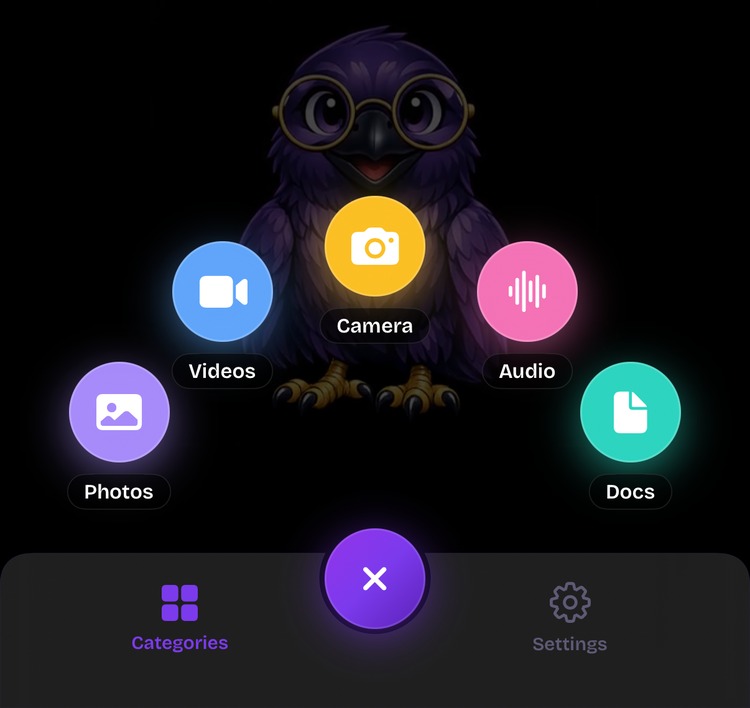
In ArkWarden, tap +, then Photos to import, or Camera to capture straight into the vault.
App lock, Hidden album, Notes lock, Data Protection, and Google Photos Locked Folder claims come from current vendor documentation.
Every file encrypted on your device, with a random master key unlocked by your pattern. No account, no ads, no server.