Your pattern unlocks the vault.
A second factor confirms it is you.
Your pattern unlocks the master key. Two-factor authentication adds a second check after that. Even if someone learns your pattern, they must pass Face ID or Touch ID, enter the PIN, or use your hardware key. The vault opens only after both checks pass.
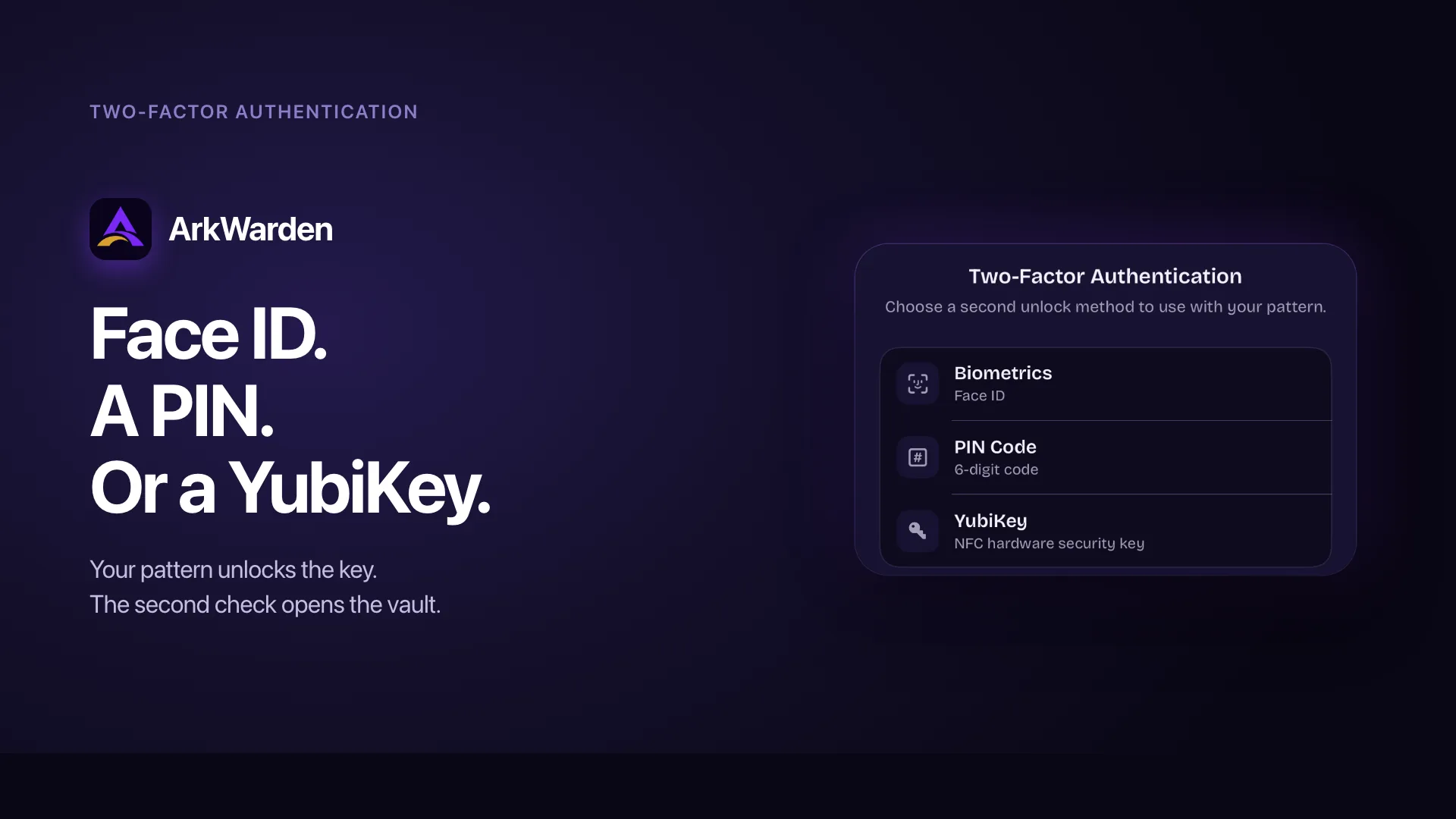
Face ID or Touch ID
The fastest second factor. Your face or fingerprint unlocks the vault in under a second. Biometric data never leaves your device's Secure Enclave.
Fastest6-digit PIN
A separate six-digit code, independent of your iPhone passcode. A code you know, no biometric hardware required, works in any conditions.
SimplestYubiKey over NFC
A physical hardware key you tap against your phone. Even if your phone is stolen or infected with malware, the key itself is separate. The only factor that is not on the phone at all. Read more about YubiKey.
Most isolatedWhat happens after you draw the pattern.
Two-factor authentication in ArkWarden is not a sign-in screen with a code from your email. It is a second check that runs after your pattern has already unlocked the master key. The order matters.
The pattern unlocks the master key
You draw your pattern. ArkWarden runs the key derivation, the candidate key tries to unwrap the master key, and either the unwrap succeeds or it does not. If it fails, you never see the second factor screen, because there is no master key to protect at that point. This is how the cryptography decides that the pattern was correct.
The second factor decides whether the vault opens
If you have a second factor enabled, ArkWarden does not show you the vault yet. It hands control to the second factor flow:
- Face ID or Touch ID prompts you through Apple's biometric system.
- A PIN screen asks for your six digits.
- A YubiKey prompt asks you to hold your hardware key against the back of your phone.
The vault stays locked until the second factor returns a clear success. Cancel, fail it, or close the app and you go back to the lock screen.
The vault opens
The second factor passes, the vault appears, and the master key stays in memory until you lock the app or close it. The next time you return, the full sequence runs again from the beginning. Pattern first, second factor second, every time.
ArkWarden does not implement its own biometric matching, comparison logic, or FIDO stack. Each method goes through Apple's frameworks or Yubico's SDK. We use the standards as designed, with no shortcuts.
Why a second factor is worth the extra second.
A single factor is a single point of failure. Two factors split the failure modes. Someone who observes your pattern still cannot get in. A lost phone still cannot get in. Both factors have to be yours.
| Pattern only | Pattern + Face ID / Touch ID | Pattern + PIN | Pattern + YubiKey | |
|---|---|---|---|---|
| What you need to unlock | The pattern | Pattern and your face or fingerprint | Pattern and six digits | Pattern and the physical key |
| Resists shoulder surfing the pattern | No | Yes | Yes | Yes |
| Works in low light or with a mask | Yes | Sometimes not | Yes | Yes |
| Factor remains separate from a cloned device | Depends on method | Yes. Biometrics bound to Secure Enclave. | Yes. PIN does not migrate to other devices. | Yes. Hardware key is separate equipment. |
| Factor is not on the phone at all | No | No | No | Yes |
| Convenience | Highest | Highest | High | Slightly slower (NFC tap) |
The pattern controls decryption. The second factor controls access.
Your pattern decides whether the encryption opens. Your second factor decides whether the vault is shown after the pattern succeeds. Splitting these two responsibilities is what makes the combination stronger than either control alone.
Choose the second factor that fits your situation.
Pick Face ID or Touch ID if your main concern is casual access, a lost phone, or someone who knows your pattern from watching you draw it. Pick a PIN for a code you know with no biometric dependency. Pick a YubiKey for a factor that is not on the phone at all. ArkWarden supports all three, and you can change your choice later.
Two-factor authentication is optional.
Some people want maximum convenience. Some people want maximum protection. ArkWarden lets you choose. You can use the pattern alone, which is already a serious cryptographic system. You can add a second factor at any time from Settings. You are not pushed into either choice during onboarding. If you use a YubiKey and lose it, your recovery phrase lets you bypass 2FA and regain access.
What each second factor actually is.
ArkWarden supports three methods. Pick the one that fits how you actually use your phone.
Face ID and Touch ID
ArkWarden uses Apple's LocalAuthentication framework for biometric verification. The actual matching happens inside the Secure Enclave, a dedicated security chip on your iPhone. The Face ID or Touch ID data never enters the regular iOS file system, never touches ArkWarden's process memory, and never leaves the device.
What ArkWarden gets back is a binary result: success or failure. We do not see the biometric template, we do not see partial scores, and we do not see what the camera saw. The full biometric path runs inside Apple's security boundary.
The 6-digit PIN
The PIN is a six-digit secret you choose during setup. It is stored on your device, with the iOS accessibility class that requires the device to be unlocked and prevents migration to a different device. There is no cloud copy and no sync.
The PIN is independent of your iPhone's own passcode. Setting a PIN inside ArkWarden does not change anything about your iPhone's lock screen, and changing your iPhone's passcode does not change anything inside ArkWarden. We recommend picking a different value for each so the two systems remain fully independent.
YubiKey over NFC
A YubiKey is a small physical security key made by Yubico. ArkWarden talks to it using FIDO2 / WebAuthn, the same standard used by Google, Microsoft, and financial institutions worldwide for their highest-value accounts.
When you register a YubiKey, the key generates a public and private key pair internally and gives ArkWarden the public key. The private key never leaves the YubiKey. At unlock time, ArkWarden sends the YubiKey a random challenge, the YubiKey signs it using the internal private key, and ArkWarden verifies the signature. This means:
- An attacker who clones your phone does not get a YubiKey. They have to also possess the physical hardware.
- An attacker who steals the YubiKey alone cannot read your vault. They still need the pattern.
- The same YubiKey can be used for unrelated services without giving those services any access to your ArkWarden vault.
You can register up to two YubiKeys per vault. The second key is a backup. If you misplace one, the other still works. For the full setup flow, screenshots, and recovery details, see the YubiKey page.
The verification chain, end to end
| Part | What it does | Where the secret is stored |
|---|---|---|
| Pattern | Helps unlock the master key through key derivation and Secure Enclave | In your head and your muscle memory |
| Master key unwrap | Authenticated decryption that opens only for the right derived key | Wrapped master key in the iOS Keychain, encrypted at rest by the Secure Enclave |
| Face ID or Touch ID | Verifies the face or fingerprint | Biometric template inside the Secure Enclave, never seen by ArkWarden |
| PIN | Matches the six digits you set | Stored in the iOS Keychain, encrypted at rest by the Secure Enclave, device-locked |
| YubiKey | Signs a fresh random challenge with FIDO2 / WebAuthn | The signing key is stored on the YubiKey itself, not on the phone |
What changes when you change your second factor
You can switch methods at any time from Settings. Switching does not re-encrypt your files, because the encryption is tied to your pattern, not your second factor. The second factor is a verification check before the unlocked vault is shown. Changing it changes the check, not the encryption.
What people usually ask next.
Is two-factor authentication required?
Does ArkWarden ever see my face or my fingerprint?
Is the PIN the same as my iPhone passcode?
Can I use a YubiKey on iPhone?
How do I set up a YubiKey with ArkWarden?
Does the YubiKey work with USB-C on iPhone?
Can I register more than one YubiKey?
What happens if I lose my YubiKey and have no backup?
What if I lose access to my second factor entirely, Face ID or Touch ID, PIN, or YubiKey?
Is the PIN stored anywhere outside my phone?
Does ArkWarden work without internet for second factor verification?
Can I change my second factor later?
What if I am compelled to unlock my vault?
Situations where a second factor matters.
One pattern is good.
Two factors are better.
Your pattern unlocks the master key. Your second factor is an additional check before the vault opens. Choose the method that works for you. ArkWarden supports all three, and you can change it at any time.

Point your camera at the code.