Add a hardware key
to your vault.
ArkWarden supports YubiKey protection for your iPhone vault. Your pattern helps unlock the master key. A YubiKey adds a second factor stored on separate hardware, not on the phone. Tap the key against your iPhone over NFC. The vault opens only after both checks pass.

Reviewed and listed by Yubico
ArkWarden passed Yubico's technology review and appears in the Works with YubiKey catalog.
View the listing →The second factor is not stored on the phone.
Both Face ID and PIN are stored on the phone. A YubiKey is separate hardware. Someone who takes your phone does not also have the key.
Your pattern helps unlock the master key that decrypts your files. A second factor is checked after the pattern succeeds, before the vault is shown. Many second factors are stored or verified on the phone. A YubiKey is different because it is separate hardware.
Because the key is physical and separate, it helps in these situations:
- Someone who takes the phone does not also get the YubiKey. They are still missing something required to open the vault.
- Malware on the phone cannot copy the key. The YubiKey's private key never leaves the key, so there is nothing on the phone to steal.
- Someone who watches you draw your pattern still cannot open the vault. They do not have the physical key, and there is no YubiKey secret shown on screen.
ArkWarden communicates with the YubiKey using FIDO2 and WebAuthn. When you register a key, the YubiKey creates a public and private key pair internally and gives ArkWarden only the public key. The private key never leaves the YubiKey. At unlock time, ArkWarden sends the key a new random challenge, the key signs it, and ArkWarden verifies the signature. No reusable YubiKey secret is stored on the phone.
YubiKey follows a widely used standard, not a custom method.
A YubiKey is a small physical security key made by Yubico. Yubico co-authored the FIDO2 and WebAuthn standards that hardware keys use. YubiKeys are used by governments, banks, and large technology companies to protect accounts where password theft is a serious risk.
ArkWarden chose YubiKey because it provides a physical second factor, keeps the private key on the hardware key, and works with iPhone over NFC. ArkWarden does not create its own hardware-key system. It uses FIDO2 and WebAuthn through the YubiKey's signing hardware.
Registering a YubiKey, step by step.
Setup happens once over NFC. You confirm with your pattern, hold the key to the top of your iPhone, and ArkWarden registers it. The screenshots below show the actual screens.
Open two-factor settings and choose YubiKey
In Settings, open two-factor authentication. ArkWarden lists three methods, one of which pairs with your pattern: Biometrics, PIN Code, and YubiKey. Choose YubiKey.
Confirm it is you with your pattern
Before changing a security setting, ArkWarden asks you to draw your pattern. This makes sure the person adding a hardware key is the same person who already unlocks the vault.
Tap Scan to Register
On the Register YubiKey screen, tap Scan to Register. ArkWarden also recommends registering a second key as a backup during setup.
Hold the key to the top of your iPhone
The system NFC sheet appears and asks you to scan your YubiKey. Hold the key against the top of your iPhone. ArkWarden communicates with the key, and once registration is complete the screen confirms the key is registered. This process does not need a network connection.
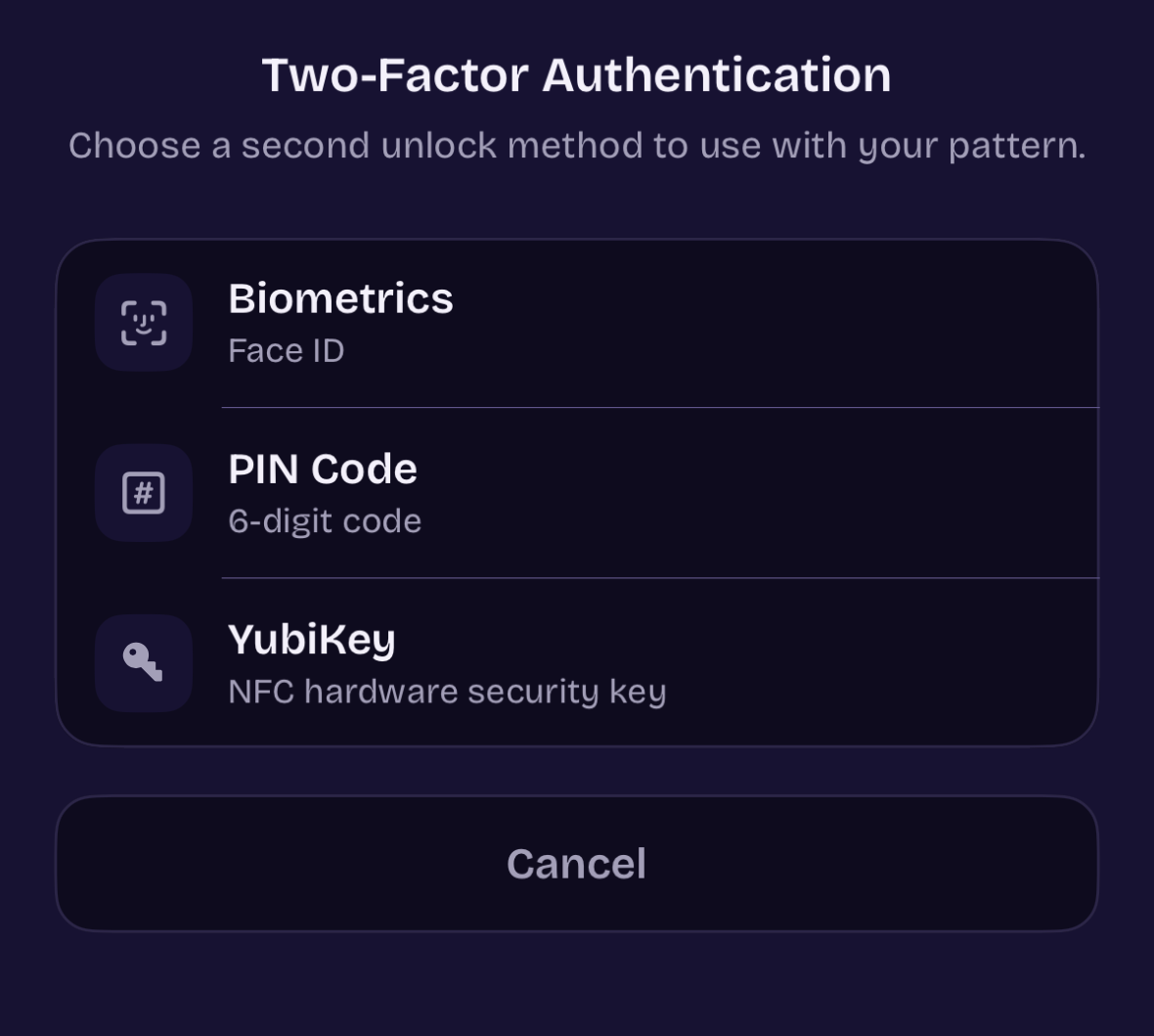
Choose YubiKey in two-factor authentication.
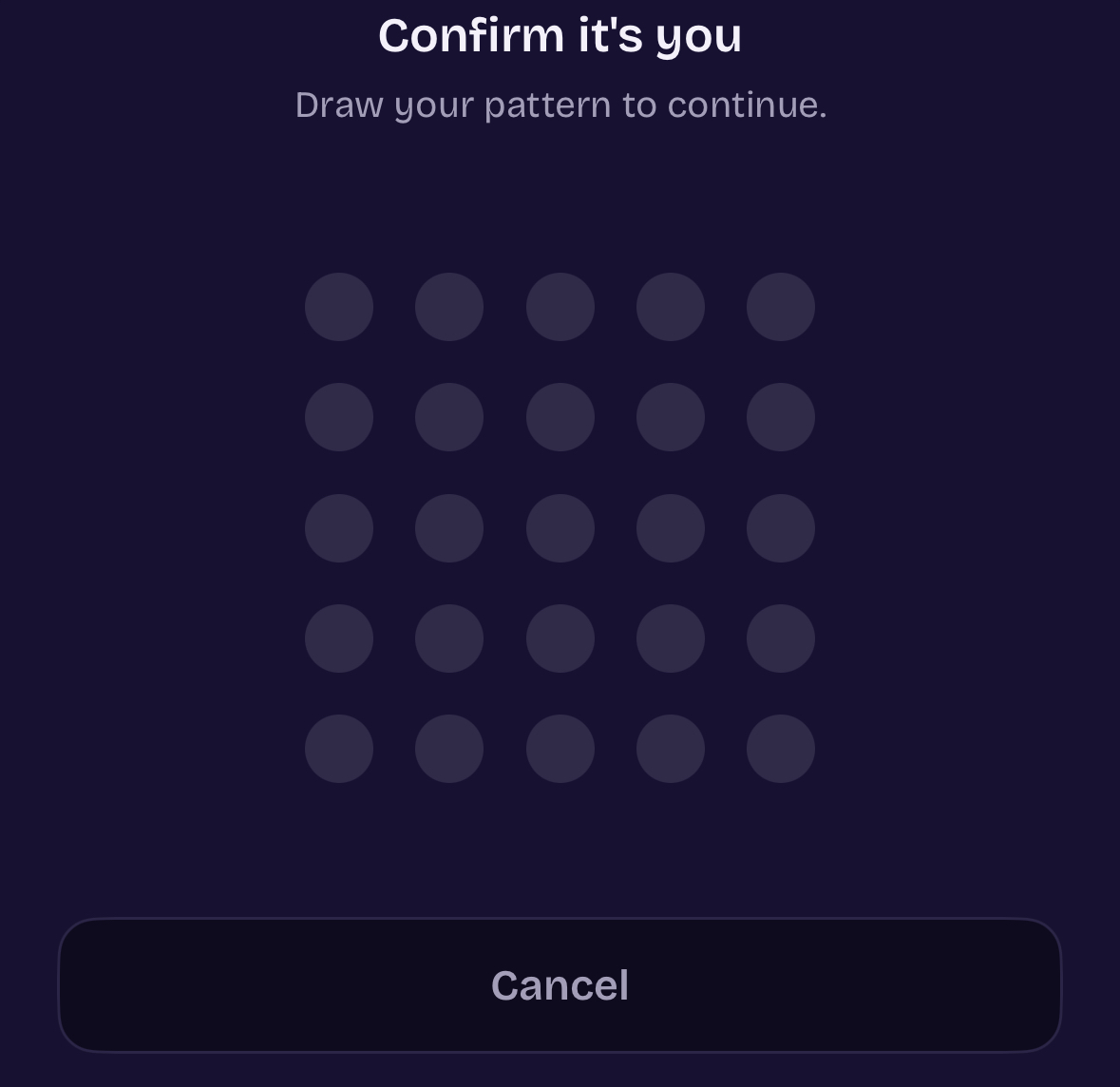
Draw your pattern to confirm it is you.
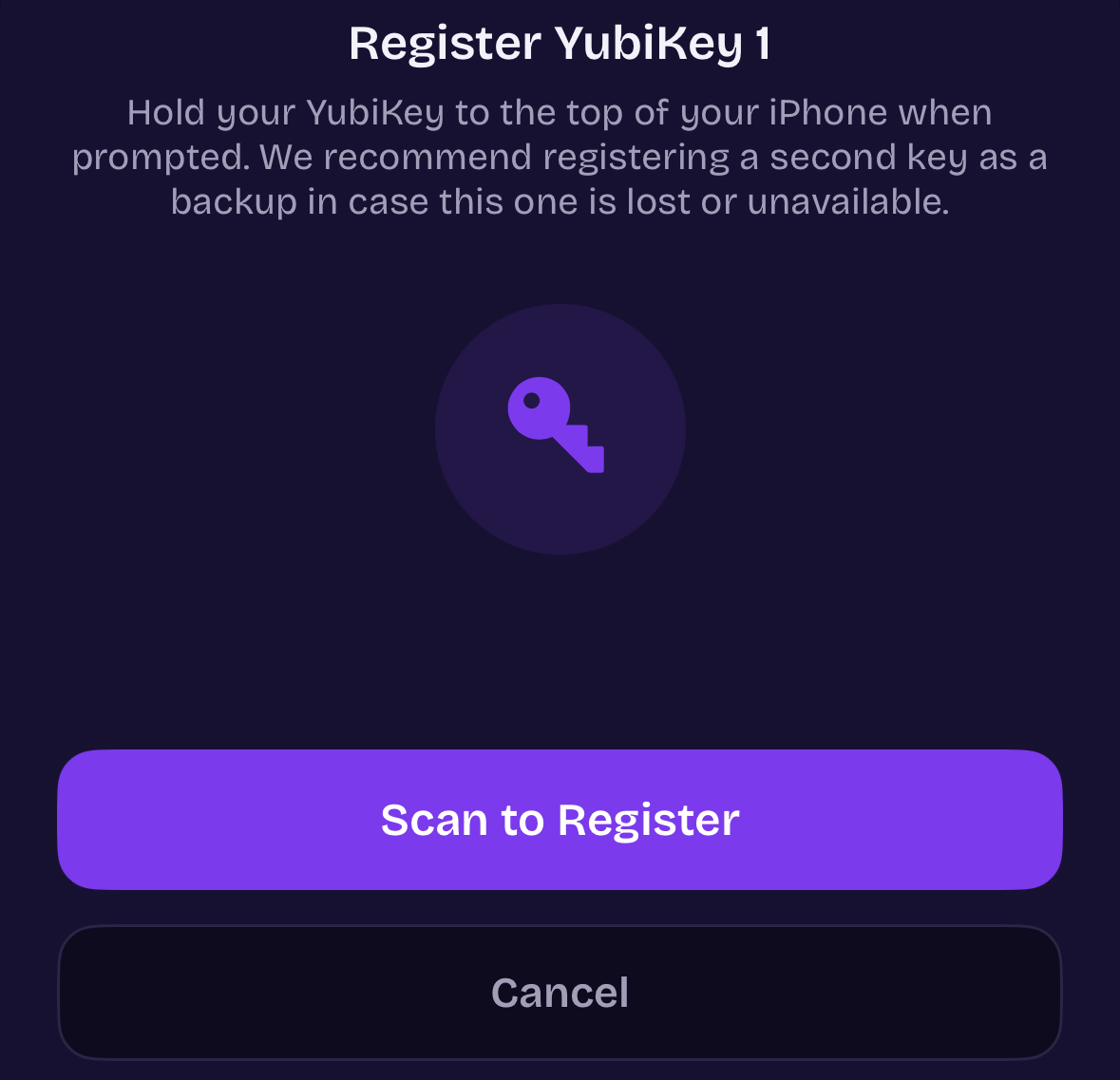
Register YubiKey 1. Tap Scan to Register.
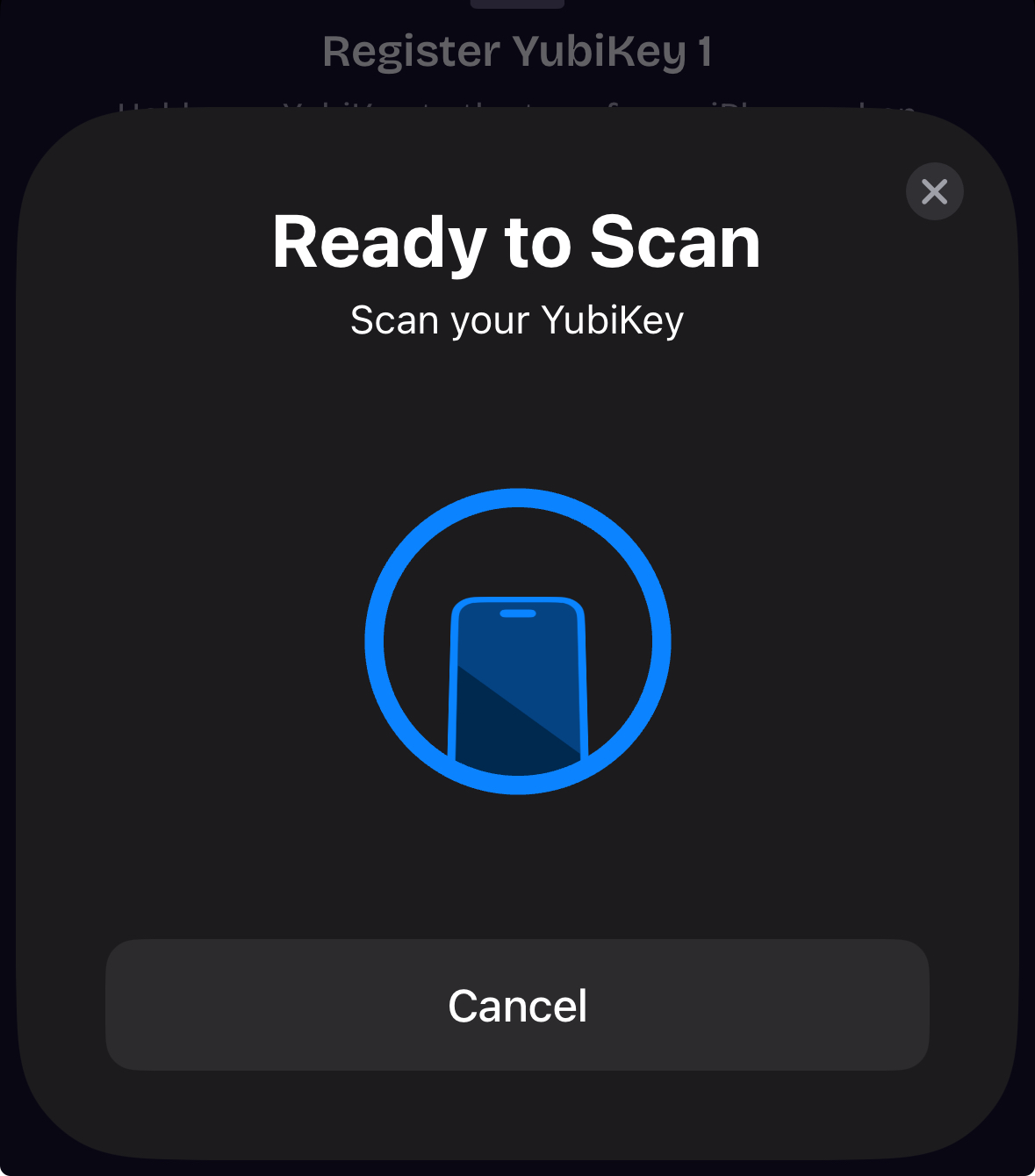
The system NFC sheet: scan your YubiKey.
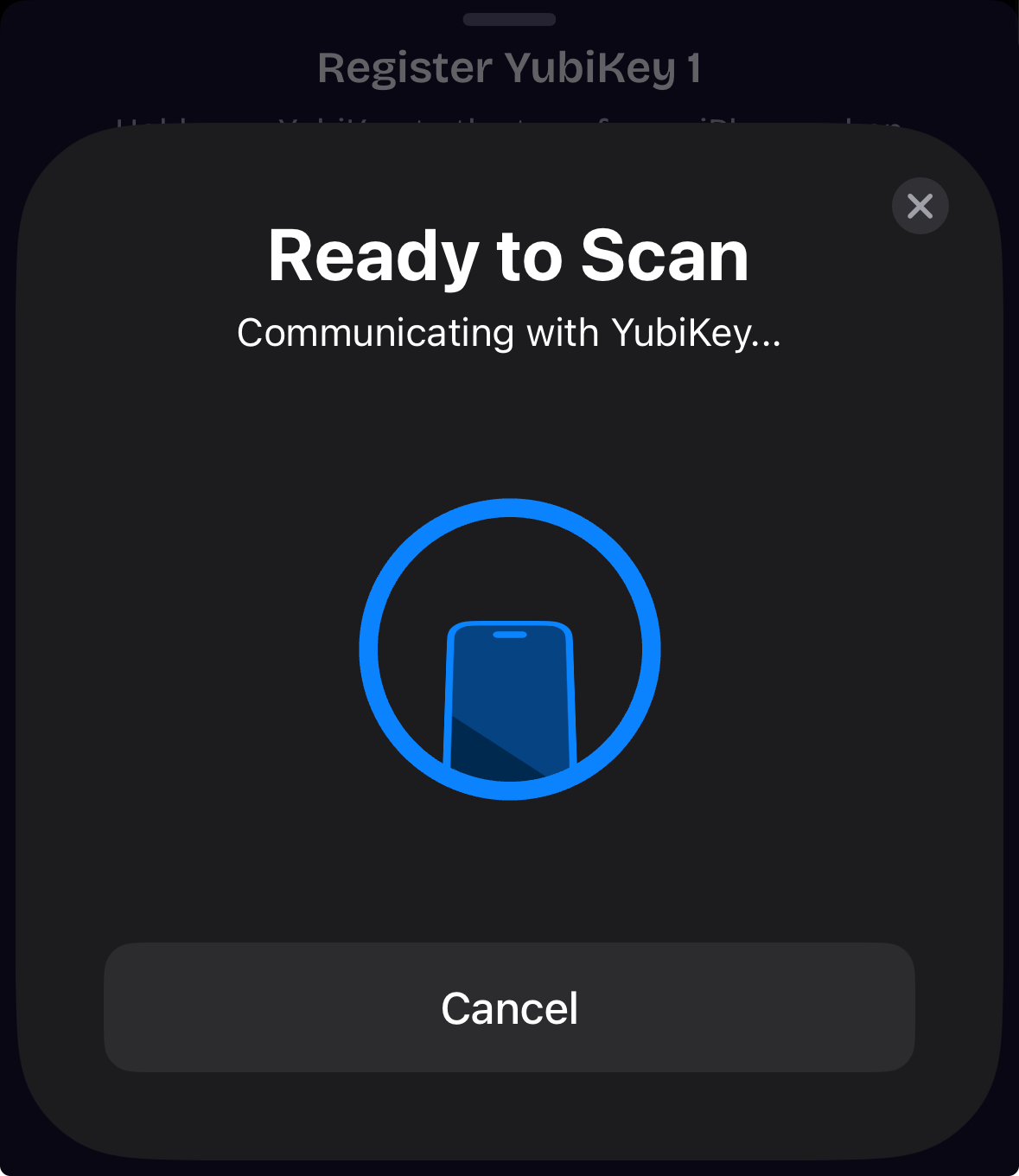
Communicating with the key over NFC.
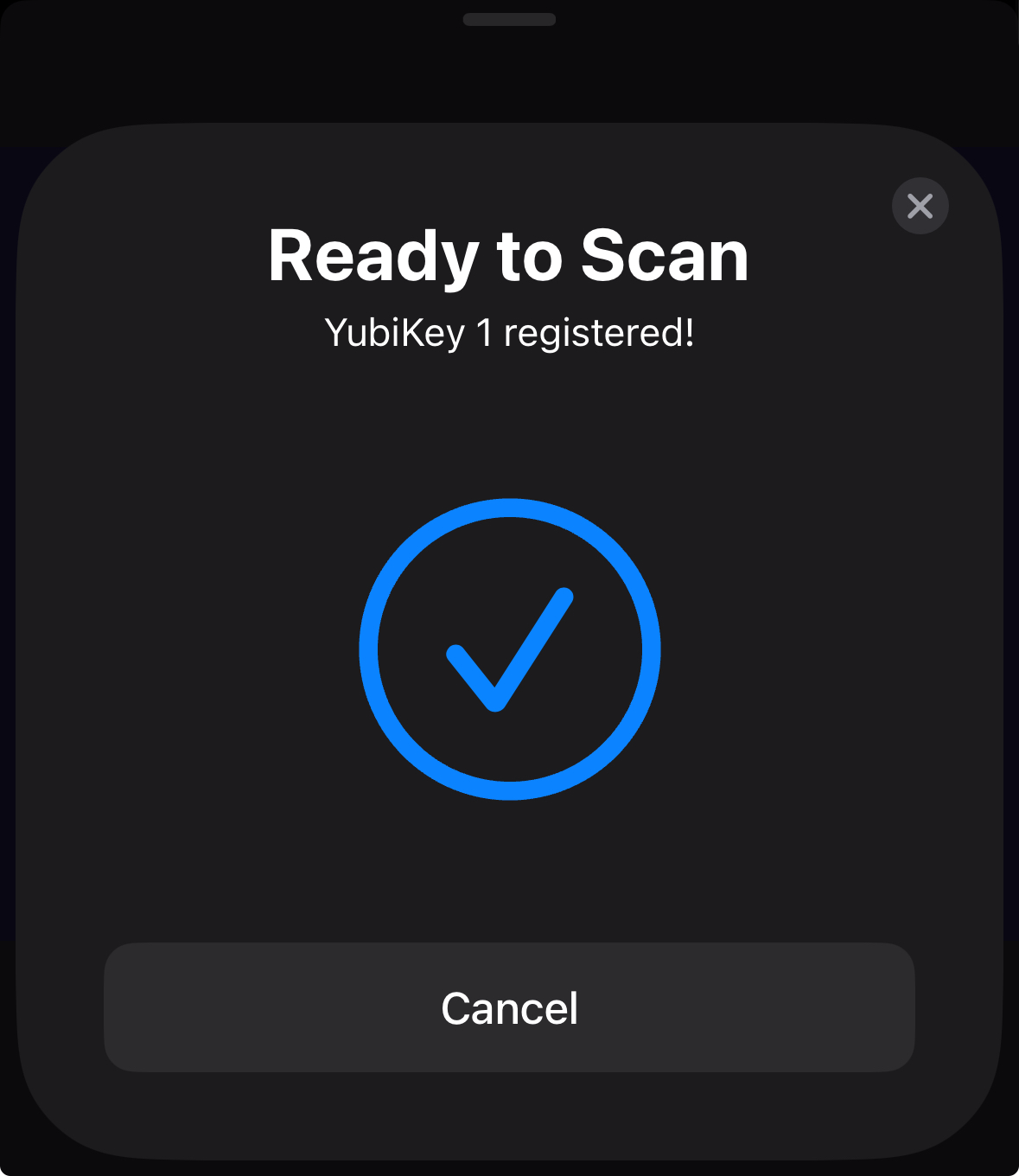
Registered. The key is now a second factor.
Register a backup key before you need it.
You can register up to two YubiKeys per vault. Either key can unlock it. The second key is your backup if the first key is lost, left at home, or unavailable.
From the YubiKey management screen, you can add a second key and remove either key. By default, the keys are named YubiKey 1 and YubiKey 2. You can rename them to make them easier to tell apart, for example by naming the key you carry and the key you keep at home. Neither key is primary. Registering two just gives the vault a second key it will accept.
The practical advice is simple. Register two keys during setup and keep them in different places. This reduces the risk of losing access because one hardware key is lost.
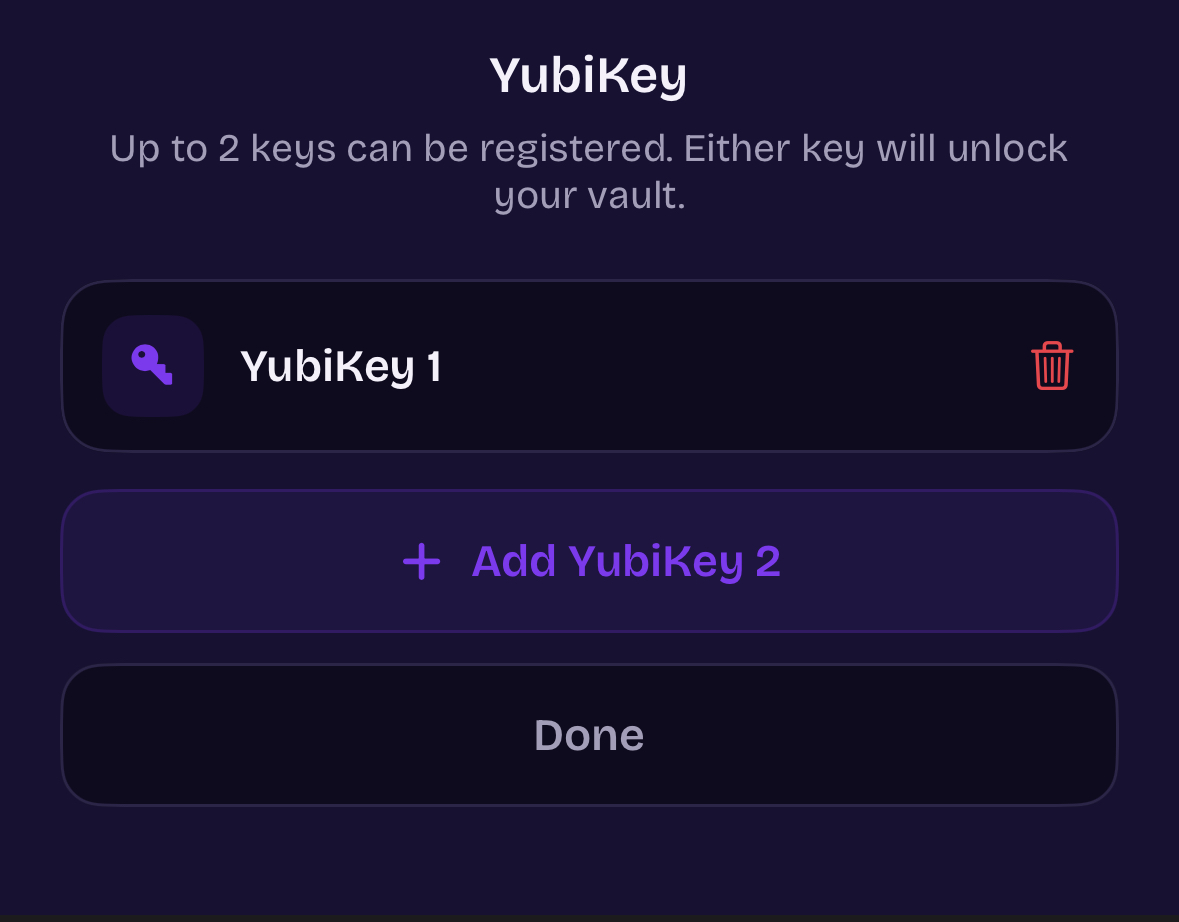
Up to two keys. Add, remove, or rename. Either key unlocks your vault.
What unlocking looks like after setup.
After a key is registered, unlocking the vault adds one NFC scan. Draw your pattern, hold the key to your iPhone, and the vault opens after the YubiKey check succeeds.
The order is always the same. You draw your pattern first, which helps unlock the master key and decrypts the vault key. Then, because a second factor is enabled, ArkWarden asks for the YubiKey before showing the vault. You hold the key to the top of the phone, ArkWarden verifies the signature over NFC, and the vault opens. If you cancel, the vault stays closed.
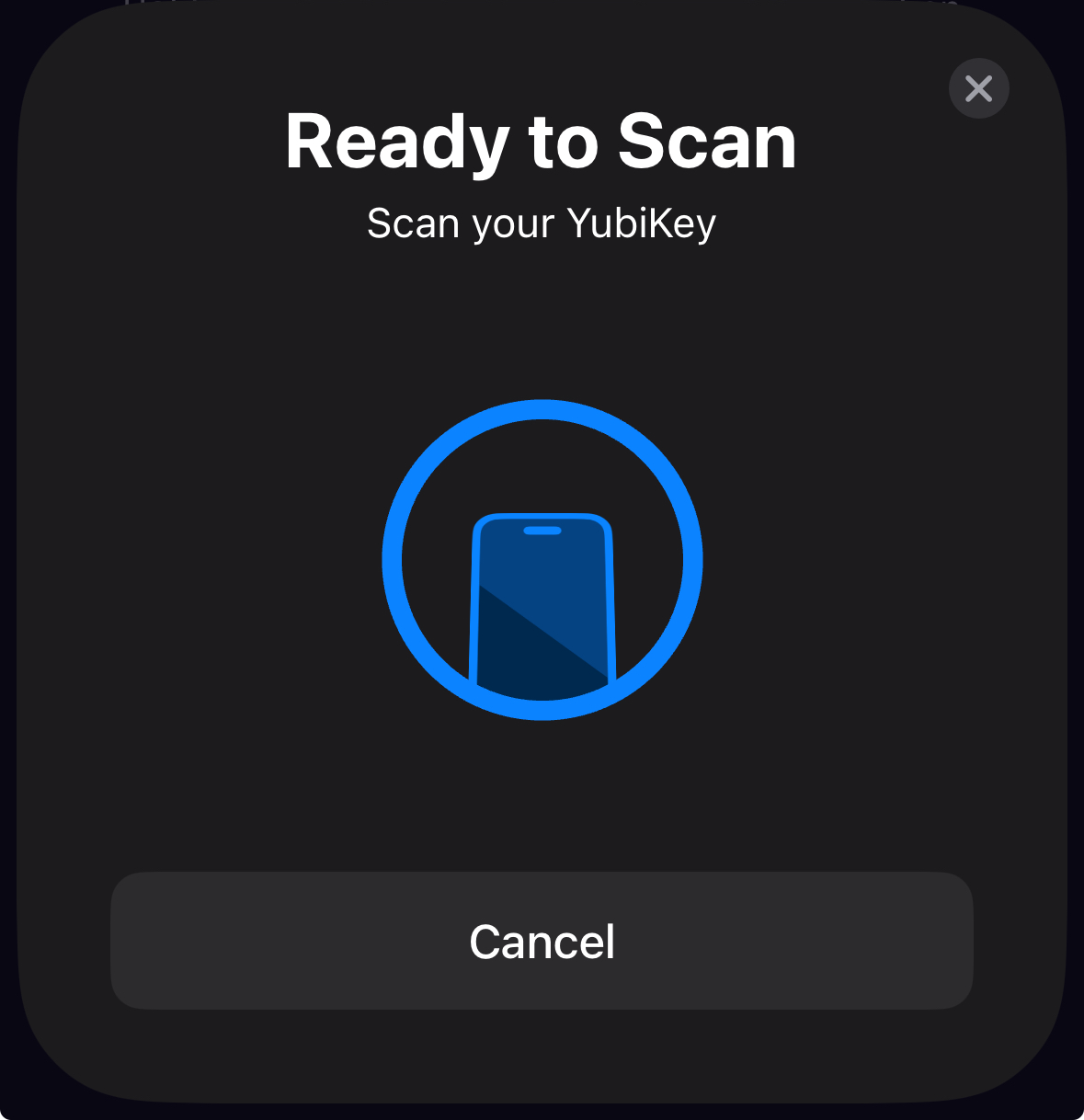
After your pattern, scan the key.
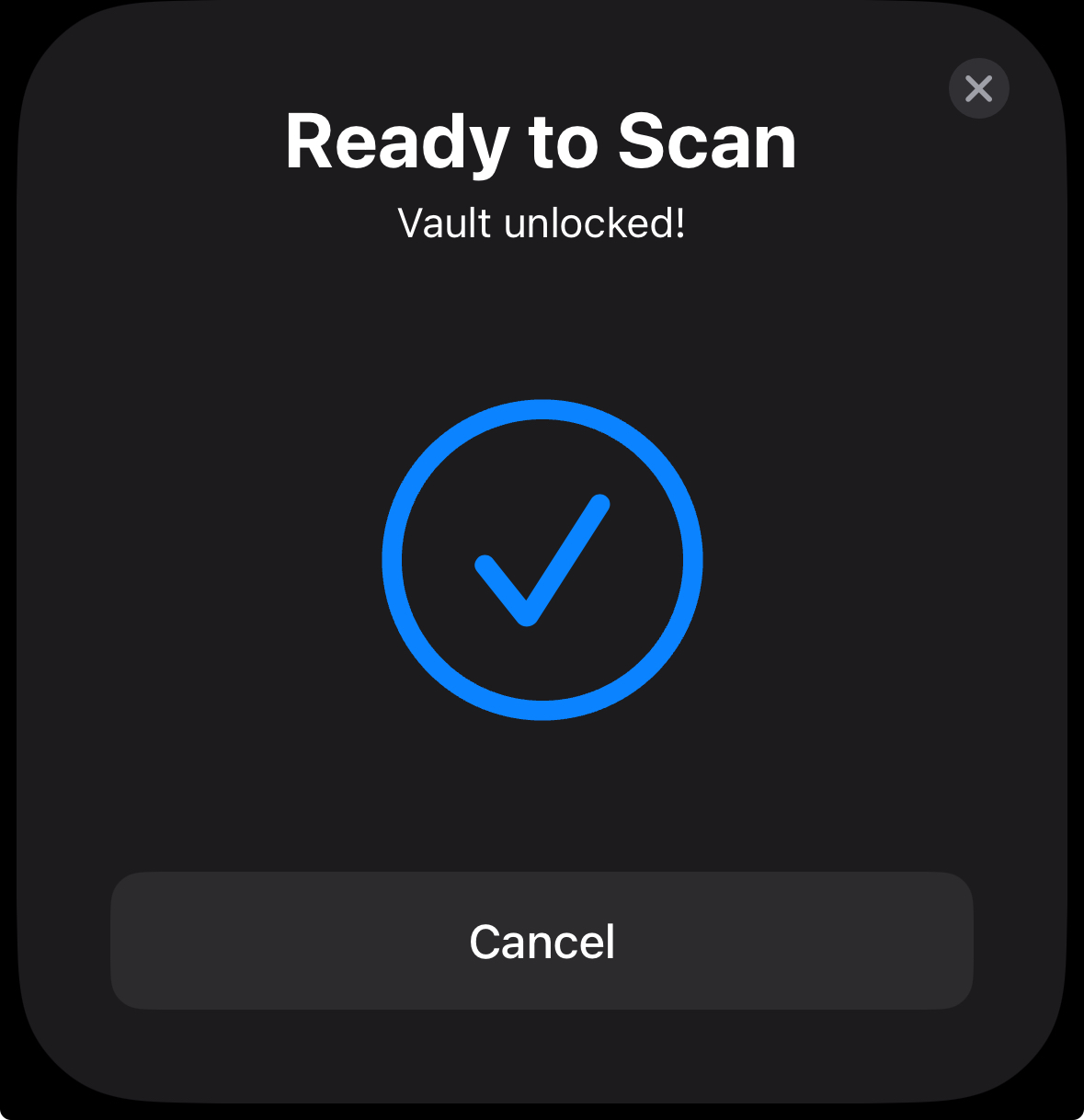
Vault unlocked. Both checks passed.
This is not an authenticator app.
Hardware keys are often used for signing in to websites, so it is important to be clear about what YubiKey does in ArkWarden. ArkWarden does not store login codes for other services, does not generate one-time passwords, and is not a replacement for an authenticator app.
The YubiKey in ArkWarden protects one thing: your vault. It is a second factor checked after your pattern, before your own files are shown. It does not change your accounts on other sites, and using it here does not register the key with anyone except ArkWarden. The same physical key still works independently with your other services.
You can recover access if a key is lost.
There are two recovery paths, depending on how you set up YubiKey:
- If you registered a second key, use it. Either key unlocks the vault, so open ArkWarden with the backup, then go to Settings and remove the lost key so it can no longer be used.
- If you had only one key and lost it, use your BIP-39 recovery phrase. On the lock screen, choose the recovery phrase option and enter your words. After the vault opens, you can disable YubiKey or register a new key from Settings.
The recovery phrase is always the final recovery method, regardless of which second factor you use. It is generated on your device, written down by you, and never stored anywhere ArkWarden can access. A second registered key is easier for normal use because it lets you recover without using the recovery phrase.
Common questions about YubiKey.
Why did ArkWarden choose YubiKey?
Can I use a YubiKey with a vault on iPhone?
Is ArkWarden officially listed by Yubico?
Does the YubiKey work over USB-C on iPhone?
How many YubiKeys can I register?
Can I rename my YubiKeys?
What happens if I lose my YubiKey?
Is ArkWarden an authenticator app?
Does YubiKey unlock work without internet?
Use your YubiKey.
Open your vault.
Most vault apps stop at a passcode. ArkWarden lets you add a hardware key, the same kind banks and governments rely on, to protect the files that matter most. Set it up in a minute.

Point your camera at the code.