Last updated: August 2026
Apple does not let you put a password on one Files folder. In ArkWarden, tap + in a category and make a folder. The files are already encrypted. The vault opens with your pattern, not the device passcode.
There is no Files setting that password-protects a single folder. On iOS 18 and later you can lock the Files app with Face ID, Touch ID, or your passcode.
Notes can be locked with the device passcode or a custom Notes password. Photos can go in the Apple Hidden album. A Home Screen folder of apps cannot be password-protected.
Apple does not offer a folder password in Files. Locking Files locks the whole app on this device.
People search for how to lock a folder on iPhone because a computer can put a password on a folder, and Files looks like the same idea. It is not. A Files folder is a place in iCloud Drive or On My iPhone. There is no Apple setting that assigns a separate password to one of those folders.
iPhone Data Protection still encrypts files on the device with unique per-file keys. That protects data at rest when the phone is locked. It is not a password you chose for one folder, and it does not stop anyone who can unlock the iPhone and open Files.
| What you asked for | What Apple actually offers |
|---|---|
Password on one Files folder |
Not available |
Keep Files closed on this iPhone |
Lock the Files app (iOS 18 and later) |
Lock text |
Lock a note in Notes |
Keep a photo out of Library |
The Apple Hidden album in Photos |
Password on a Home Screen folder |
Not available. Lock or hide the app instead |
On iOS 18 and later, require Face ID, Touch ID, or your passcode to open Files. That is an app lock on this iPhone, not a folder password.
Find the Files app among your icons.
Hold until the Quick Actions menu opens. Do not wait so long that the icons start jiggling.
Apple labels the action with whichever unlock the iPhone uses. After you quit Files, it locks again. Opening it needs that unlock each time.
Apple's lock or hide an app guide says information inside a locked app does not appear in other locations, for example in CarPlay, notification previews, search, Siri suggestions, or call history. The locked or hidden status stays on this device. It does not sync with iCloud.
Apple lists built-in apps that cannot be locked: Calculator, Camera, Clock, Contacts, Find My, Maps, Shortcuts, and Settings. Files is not on that list. Built-in apps also cannot be hidden. Only apps you download from the App Store can. Hiding Files is not an option. Locking it is.
Anyone who can unlock this iPhone with Face ID, Touch ID, or the passcode can open a locked Files app the same way. The lock is device authentication. It is not a second password for one folder inside Files.
You can lock a note with the device passcode or a custom Notes password. Apple cannot recover a forgotten custom Notes password.
Open Settings, tap Apps, tap Notes, then tap Password. Follow the prompts to Use Device Passcode or Create Password. Using the device passcode needs iCloud Keychain. If you create a custom password, set a hint.
Open the note, tap the More button, then tap Lock. After it is locked it can stay open. Tap the lock icon at the top to hide the contents.
Tap the locked note, tap View Note, then use Face ID, Touch ID, or the password. If you close Notes or the device sleeps, the note locks again.
Apple's lock notes article is the source for these steps. You can only lock notes on the device and notes in iCloud. Notes that sync from a third-party account such as Gmail or Yahoo cannot be locked. A Managed Apple Account also cannot lock notes.
If you use a unique Notes password and forget it, Apple states there is no way to access those locked notes. Resetting the password lets you lock other notes. It does not unlock notes locked with the old password. Keep that password somewhere you control, or use the device passcode instead.
You cannot lock notes that have tags, PDFs, audio, video, Keynote, Pages, or Numbers documents. You cannot lock notes that use IMAP. You cannot password-protect a note you share. Stop sharing first if you need the lock.
Hide photos in Photos, under Collections, then Utilities, then Hidden. That keeps them out of Library. They stay in the Photos library.
Open Photos, tap Collections, scroll to Utilities, and tap Hidden. Tap View Album and unlock with Face ID, Touch ID, or your passcode. On iOS 17 and earlier the album sits under Albums, then Utilities. Full path: How to find hidden photos on iPhone.
Hiding changes the album you see. It does not take the photo out of Photos. If iCloud Photos is on, the Hidden album still syncs. Details: Do hidden photos sync to iCloud?.
iPhone Data Protection encrypts files on the device with per-file keys. Apple does not document a separate Hidden album key independent of device authentication. The passcode that opens the phone also opens the album.
A Home Screen folder only groups app icons. Apple lets you lock or hide an app. It does not put a password on a folder of apps.
Touch and hold the app you want closed, then tap Require Face ID, Touch ID, or Passcode. To hide an App Store download, choose Hide and Require Face ID from that same menu. The app moves to the Hidden folder at the bottom of App Library. Apple still shows the name in Screen Time, Battery, and App Store purchase history.
Apps that come with iPhone cannot be hidden. Only apps you download from the App Store can. Children under 13 in a Family Sharing group cannot lock or hide apps. Ages 13 to 17 can, but a parent or guardian can still see that the app was downloaded and how much time it is used.
Some App Store apps market folder lock. Check whether they encrypt the file or only lock a screen. This page does not rank them.
A name like folder lock describes a hope, not a mechanism. Ask whether the app encrypts each file with a key you hold, or only locks its own screen. A PIN on an app screen is access to that interface. It does not add a separate folder key. Files also adds no separate folder key. ArkWarden encrypts the files independently of their folder organization.
Google Photos Locked Folder shows up in this search. That feature lives inside Google Photos. It is not a password on a folder in the iPhone Files app, and it is not the Apple Hidden album.
If you want a comparison of vault apps that name file encryption, that is a different page: photo vault apps for iPhone. This guide stays on what iPhone can lock, and what it cannot.
Yes, ArkWarden has folders. Open a category, tap +, then New Folder. Drag existing files in, or import straight into the folder. The folder is organizational. The vault encryption protects the files.
Get ArkWarden on the App Store
| ArkWarden | Lock Files | Lock a note | Apple Hidden album | |
|---|---|---|---|---|
What it covers |
Photos, videos, documents, and audio outside Photos, in folders you create |
The whole Files app on this iPhone |
One note |
Photos still in the Photos library |
Per-folder password |
No. Folders are labels on files that are already encrypted |
No |
No. The lock is per note |
No. The lock is the album |
What opens it |
Your pattern, or the recovery phrase you hold. Not the device passcode. |
Face ID, Touch ID, or the device passcode |
Device passcode, or a custom Notes password |
Face ID, Touch ID, or the device passcode |
Sync |
Does not sync through iCloud Photos. No ArkWarden account |
The app lock does not sync. Files in iCloud Drive still can |
Locked iCloud notes stay locked on your other Apple devices |
Syncs when iCloud Photos is on |
If you forget the password |
The recovery phrase you saved. There is no email reset |
The device passcode still opens it |
Apple cannot recover a custom Notes password |
The device passcode still opens it |
Best for |
Folders inside a category. Files already encrypted. Vault unlocks as a whole |
Stopping a quick look through Files on a phone you still control |
Text you already keep in Notes |
Photos you only need off Library |
The folder is organizational. The vault encryption protects the files. In each category, tap +, then New Folder, and give it a name. You can create as many folders as you want in that category. Folders cannot go inside other folders. Press and hold a file and drag it onto a folder. The folder lights up. Let go to move it in. If several files are selected, dragging one of them moves the whole selection. Open a folder and tap + to import files directly into it. Details: Folders and categories.
Files are already encrypted with AES-256-GCM before they sit in a folder. The folders themselves sit in the encrypted vault index. Organizing the vault does not add a second password and does not change how the files are protected. The vault opens with your pattern. That pattern unlocks a random 256-bit master key. It is not a key derived from the pattern. Optional Face ID, a PIN, or a YubiKey over NFC can sit in front as a second factor. There is no ArkWarden account and no ArkWarden server for normal use. Optional backup is off by default. If you turn it on, the copy is encrypted on the device first and opens with the recovery phrase you hold.
If the files currently sit in Photos, import them first. Match the count, then open the imported files. Opening one file does not prove the rest imported. If you want a second copy, turn on the optional encrypted iCloud backup, or export an encrypted backup file, before you delete anything. Then delete the Photos copies, then remove them from Recently Deleted. The same sequence applies if you import from Files: match the count, open the files, choose or create a second copy, then delete the originals.

In an ArkWarden category, tap + to open the folder and import actions.
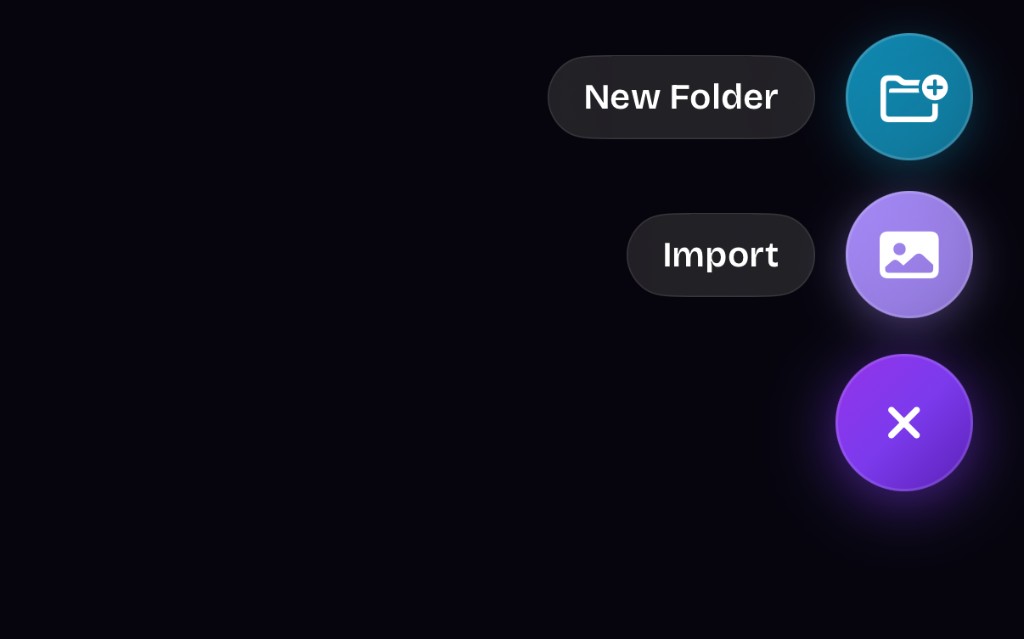
New Folder creates a folder inside the category. Import adds files directly to it.
App lock, Notes lock, Hidden album, and Data Protection claims come from Apple's current documentation.
Every file encrypted on your device, with a random master key unlocked by your pattern. No account, no ads, no server.